AI avatar generator for presenter videos
Choose an avatar and give it a script or speech recording. Generate a presenter video, then bring the result onto your ChatCut timeline to finish the edit.
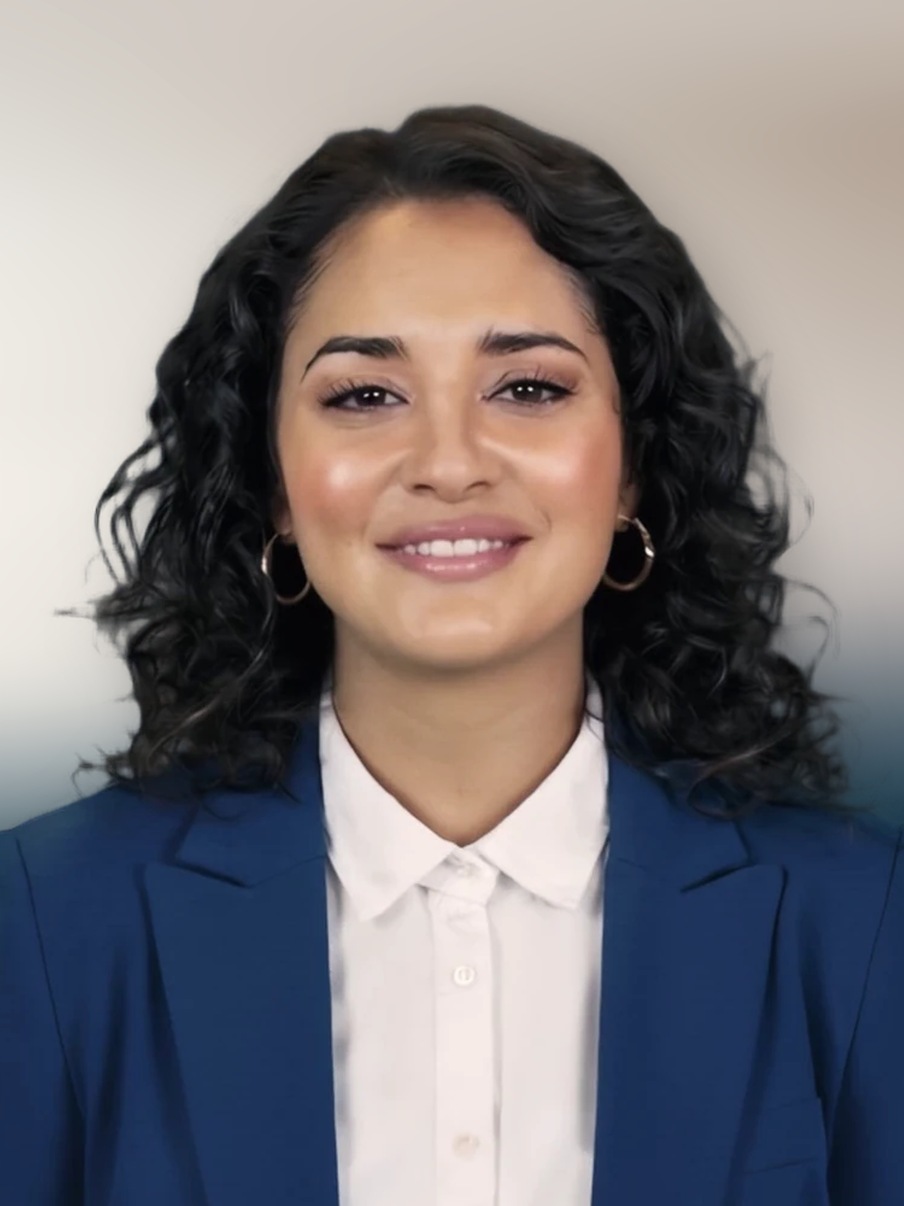
Tahlia · tap a side portrait to switch

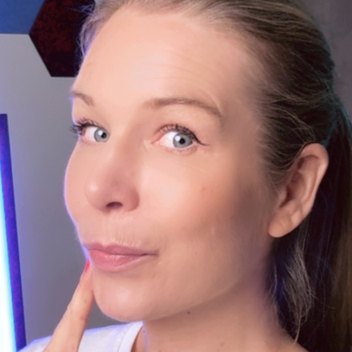
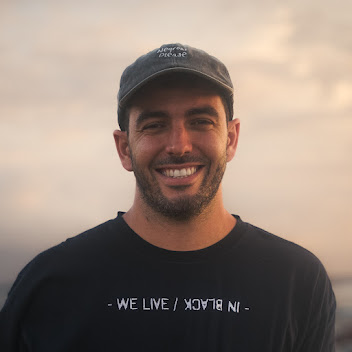
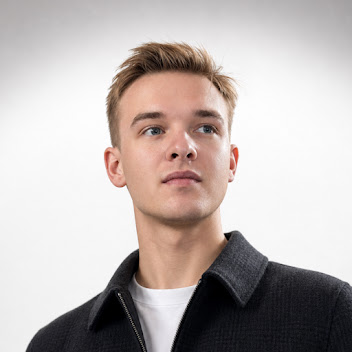
Trusted by 400,000+ creators
How it works
How to use the AI avatar generator
- 01
Write the presenter brief
Enter what the presenter should say on this page, open ChatCut, and sign in free. Prepare the final script or import the speech recording you want the avatar to use.
- 02
Attach the presenter and voice
Switch to Agent mode and select + → AI Avatars. Pick Featured or My Avatars, keep the saved voice or use + → Voices, and specify the frame and background.
- 03
Confirm the video and review it
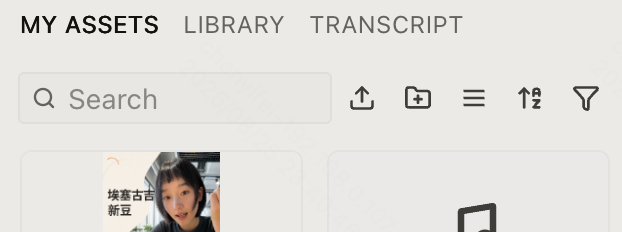
Send the request, review the generation confirmation and credit estimate, then allow it. Find the finished take in My Assets and drag it to the timeline when you want to edit.
Why ChatCut
Why use an AI avatar generator in ChatCut
-
Choose an official or personal presenter
Open + → AI Avatars and choose Featured or My Avatars. Selecting a card attaches the identity to the current draft; it does not start generating the performance.
-
Give the presenter your final script
Supply the exact words and ask for a reading without rewriting. The digital human guide shows how to include the aspect ratio, resolution, voice, and background instructions.
-
Start from recorded speech
Use a speech audio file already imported into your project when the delivery is settled. This keeps the recording at the center of the request instead of asking for a new reading.
-
Keep or replace the saved voice
Use the avatar’s saved voice, or attach another through + → Voices. Preview voices before choosing; the voice library guide explains supplied voices and personal clones.
-
Create an identity from a portrait
Choose Create Avatar and upload a portrait you are authorized to use. Review the live credit price before creating the identity; generating a presenter video is a separate step.
-
Edit the finished presenter take
Drag the completed video from My Assets to the timeline. Combine it with your footage, add captions, or add background music around the spoken section.
Tips
Prepare a script for an AI avatar generator
Finalize the script, portrait, and voice before generating a presenter take for your edit.
-
Read the script aloud
Replace long clauses with short sentences and spell out unfamiliar abbreviations so listeners understand the first time.
-
Choose portrait and voice separately
Select a clear portrait and an authorized voice separately, then check both in the draft to confirm the intended presenter.
-
Listen before generating the presenter
Review names, pauses, and emphasis in the prepared speech first so the delivery fits the intended moment.
Use cases
AI avatar generator ideas for your next video
-
A presenter opening for a lesson
Introduce the lesson with a short script and a familiar presenter. Choose the avatar and voice first, then leave room for the tutorial footage after the welcome.
-
An update using your own recording
Record an announcement with the names, pauses, and emphasis you want, then use that audio for your avatar video. Keep the introduction short so the main update starts quickly.
-
A fictional dialogue beside the presenter
Pair a presenter’s explanation with a short fictional exchange generated in Video Gen. In this Kling 4.0 scene, a customer and a barista speak in turn while ordering coffee.
Keep editing
Give the presenter something useful to introduce
Build the edit around the idea being explained. Put product footage or a demonstration after the opening, trim pauses, and review captions against the actual speech. If you already have footage of the speaker and only need new words, use lip sync with the finished replacement audio.
- Conversational editing
- Text-based editing
- Auto-captions
- Motion graphics
- AI voiceover
- Generate clips
- Noise removal
- Multi-track timeline
-
You Can Now Edit Videos with Grok Bot
Edit with Grok Bot -
How to Make 3× the Content With AI (No Editing Experience)
Turn long videos into shorts -
I Turned One Product Photo Into a Full Ad With ChatGPT
Product ads skill -
How to Create Insane Motion Graphics with Astra 6
AI motion graphics
Skills
Hundreds of skills for any video
100+ Skills. No experience needed. Start in one click.




FAQ
AI avatar generator FAQ
Is creating a presenter video free?
Avatar video generation uses credits, and built-in Agent messages also use credits. Review the generation confirmation and estimate before allowing the job. Creating a new avatar identity has its own live price in the creation flow; see generation credits.
Can I create an avatar from my own photo?
Yes. Use + → AI Avatars → Create Avatar and upload an authorized JPG, JPEG, or PNG portrait up to 500 MB. Name it and review the price before selecting Create; this creates an identity, not a video.
Can I use speech audio instead of a script?
Yes. Import final speech audio and reference it with the selected avatar. Listen through the recording first to catch wrong words and unwanted pauses.
Can the presenter use my own voice?
Attach a personal voice through + → Voices. Narration with My Voices requires active paid membership and credits. Face and voice permissions are separate; see voice cloning.
Can I choose a different language?
Use a script or recording in the intended language and choose a compatible voice. Support varies, so filter by language and audition the relevant sample first.
Can I request a vertical presenter video?
Yes. Include an aspect ratio such as 9:16, resolution, and background instructions. Review the resulting frame for room around the presenter before adding captions.
Does selecting an avatar start a video job?
No. Selection attaches the avatar to your draft. Add the speech, voice, and framing instructions, send, then review the generation confirmation.
Can I edit and download the finished take?
Completed videos appear in My Assets with a Download action when available. Drag the clip to a timeline for further editing and export. These manual actions consume no credits; see the credits policy.
Related
Tools to pair with an AI avatar generator
All AI apps
Audio & voice
Captions, text & translation
AI video & images
All free tools
Convert & compress
Edit video
Audio & voice