Lip sync your video to new speech
Make the mouth of one visible speaker match a finished replacement audio track. Add both assets in ChatCut and review the speech and credit estimate before generating.



Trusted by 400,000+ creators
How it works
How to apply lip sync to your video
- 01
Describe the correction
Write the change you need on this page, open ChatCut, and sign in free. Import a video with its original speech audio and the final replacement recording into My Assets.
- 02
Reference both assets in Agent mode
Switch to Agent and @ mention the video and the audio. Request mouth synchronization and specify whether the video must keep its exact length or may stretch slightly to fit.
- 03
Listen, confirm, and review
Play the audio on the confirmation card, check the credit estimate, and select Confirm and generate. Find the new video in My Assets, then watch it with sound before adding it to the timeline.
Why ChatCut
Why use AI lip-sync tools in ChatCut
-
Use the speech you already approved
Supply a finished recording or generated narration. The mouth follows that audio, so the words and voice are decided before this job begins; prepare a voiceover first if needed.
-
Keep the speaker and scene
Work from your own footage with one clearly visible speaker and its original speech audio. The result uses the same person and scene, with the mouth following the replacement words.
-
Check timing before generating
The Agent checks the video and audio lengths against your exact-length or flexible-length choice. Fix an unsuitable duration before rendering instead of expecting the system to cut approved words.
-
Listen on the confirmation card
Play the actual replacement audio and check the voice, wording, and pauses. Select Confirm and generate only when that is the speech you want the viewer to hear.
-
Review the cost every time
Every job has a confirmation and credit estimate. Auto-Allow does not skip this step; the generation confirmation guide explains the controls and approval behavior.
-
Keep both source assets
The result arrives as a new video in My Assets. Your original video and replacement audio stay untouched, so you can review the result against the source before using it in the edit.
Tips
Prepare footage for better lip-sync results
Finish the replacement speech, then prepare a clear shot of one visible speaker for lip sync.
-
Keep one visible speaker
Export a clear shot of one speaker with original speech audio so the system identifies who speaks and when.
-
Match pauses and sentence timing
Listen to replacement speech against the original performance and adjust pauses so sentences align as well as total duration.
-
Fix the replacement speech first
Check names, numbers, and sentence endings before submitting because the mouth pass follows the audio you approve.
Use cases
Where AI lip-sync fits into your edit
-
A translated presenter segment
Give a presenter segment a new language version with speech and mouth movements that match. Choose mouth synchronization within video translation when preparing the translated take.
-
A cutaway around a revised line
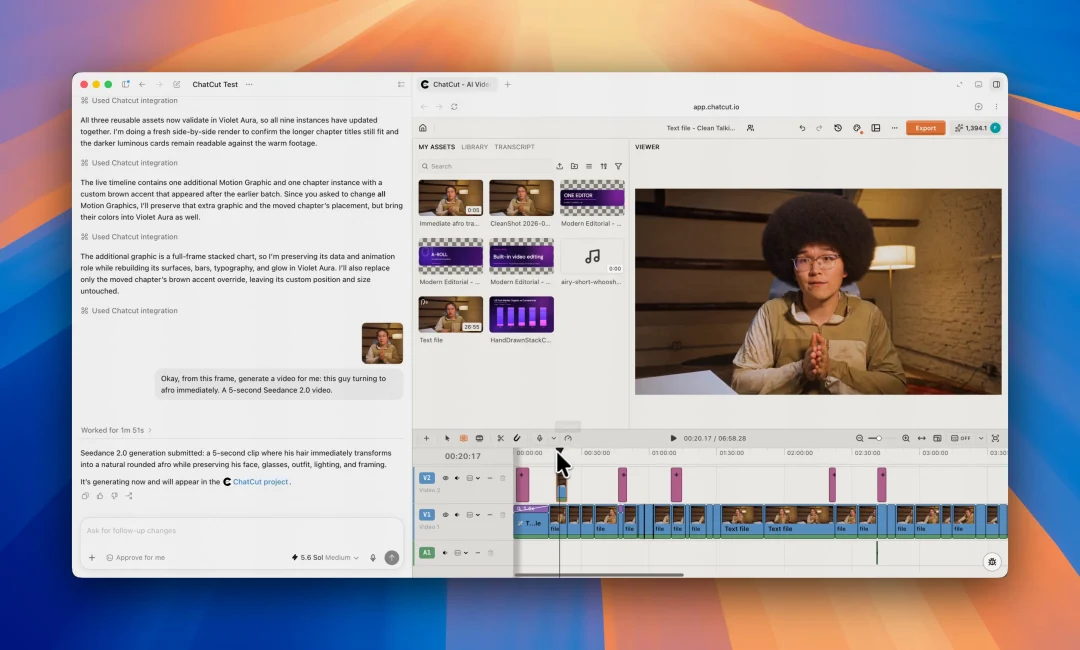
Once the corrected speech is in place, add a short supporting shot where the edit needs a visual change. Generate the cutaway from a project frame and place it alongside the presenter footage.
Keep editing
Finish the correction in context
Play the revised shot with its neighboring clips. Check the first consonant, last word, and music before you add captions. Placement matters even when the individual take looks correct.
- Conversational editing
- Text-based editing
- Auto-captions
- Motion graphics
- AI voiceover
- Generate clips
- Noise removal
- Multi-track timeline
-
You Can Now Edit Videos with Grok Bot
Edit with Grok Bot -
How to Make 3× the Content With AI (No Editing Experience)
Turn long videos into shorts -
I Turned One Product Photo Into a Full Ad With ChatGPT
Product ads skill -
How to Create Insane Motion Graphics with Astra 6
AI motion graphics
Skills
Hundreds of skills for any video
100+ Skills. No experience needed. Start in one click.






FAQ
Lip sync FAQ
Is this feature free?
No. It uses credits and requires an eligible plan; the documentation identifies it as Pro. Review the estimate before generating. Agent messages also use credits, while manual editing and export do not; see the credits policy.
Does the source video need its original audio?
Yes. Original speech audio identifies who is speaking and when. Supply the video with that audio intact, plus a separate final replacement recording.
Can I change the speech of one person in a group?
The workflow requires one visible speaker and cannot select among several faces. Prepare a separate single-speaker shot; trimming time alone does not remove other visible people.
How closely must the two lengths match?
Use audio within a quarter of a second of the video for an exact-length result. If a slight stretch is allowed, the longer asset may be at most about 15% longer than the other. Align the sentence timing too; matching totals alone is not enough.
Can it translate my video into another language?
Standalone mouth synchronization does not translate or generate speech. Use video translation for a language version and choose its synchronization option when needed. Read the translation walkthrough before preparing that request.
Can I start from a photograph?
This workflow needs existing video with original speech audio. For a new presenter performance from a portrait or script, use AI avatars instead. If there is no visible speaker and you only need narration, replace the audio without changing the picture.
Will the generated file match the source format exactly?
No. The picture is re-rendered into a new asset, so codec, frame rate, and transparency may differ. Keep the originals and review the result before using it.
Can I download the result and keep the original?
Yes. Both source assets remain untouched. Download the completed video when that action is available, or drag it to the timeline for editing; see asset downloads.
Related
More lip-sync and speech tools
All AI apps
Audio & voice
Captions, text & translation
AI video & images
All free tools
Convert & compress
Edit video
Audio & voice