AI voice generator for your videos
Give your script a voice. Choose a voice in ChatCut, describe the delivery, and generate narration you can trim and place alongside your footage.






Trusted by 400,000+ creators
How it works
How to use the AI voice generator
- 01
Write the narration request
Describe your reading on this page, open ChatCut, and sign in free. Add the final script and explain which part of the video it should accompany.
- 02
Preview and attach a voice
Choose + → Voices, preview Featured or My Voices, then select Use. Add your language, delivery, and placement instructions, following the narration guide.
- 03
Generate, listen, and place
Send the request and find the completed audio in My Assets. Listen for pronunciation and pacing, then drag it to A1 or another audio track if it was not placed automatically.
Why ChatCut
Why use an AI voice generator in ChatCut
-
Listen before choosing
Open + → Voices and preview Featured voices before selecting Use. The voice library guide explains search and language filters; attaching a voice alone does not generate audio.
-
Give your script a clear reading
Paste the words you want spoken and describe the delivery. AI voiceover turns that request into a project audio asset you can review before using it.
-
Specify where narration belongs
Name a track, start time, target duration, or clip to match. If your request does not place the result, drag it from My Assets onto an audio track.
-
Direct pace and pronunciation
Ask for a measured or energetic read, and explain how a name should sound. Keep the selected voice language aligned with your script, then audition the result.
-
Keep the reading editable
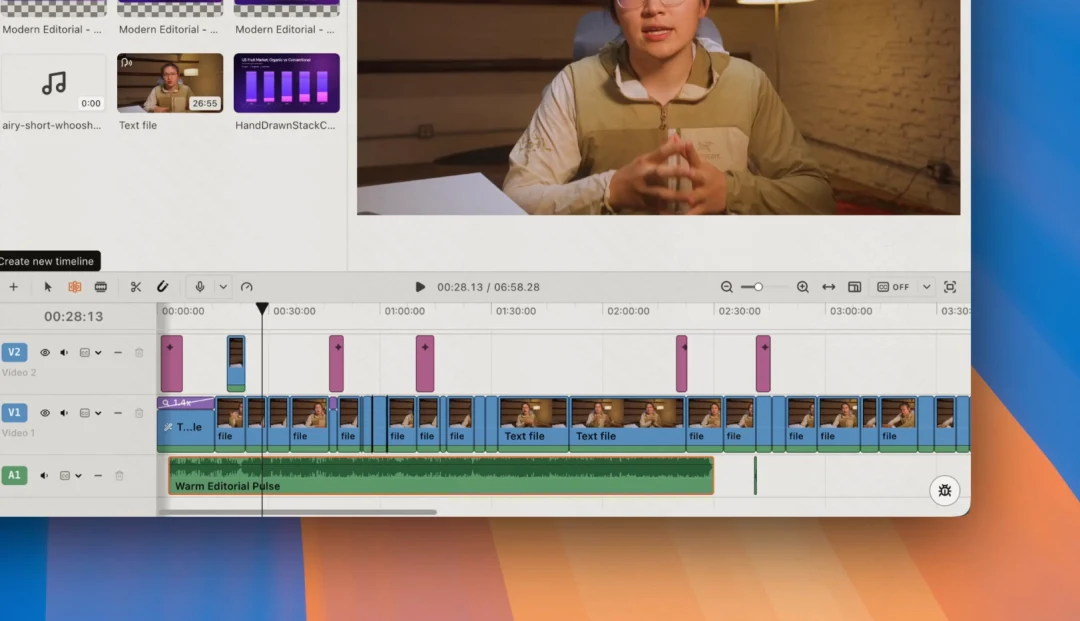
Move and trim narration alongside your footage, then adjust its volume. Use the audio editing workflow to balance the reading against the rest of the scene.
-
Return to your own narrator
Save an authorized personal voice through voice cloning and attach it from My Voices. Generating narration with it requires an active paid membership and uses credits.
Tips
Get a natural read from an AI voice generator
Read the script aloud, audition in its language, and review the generated speech against your footage.
-
Read the script aloud first
Split sentences that leave you breathless and spell out unfamiliar abbreviations so listeners can follow the first time.
-
Audition in the script language
Set the language filter and test a passage with a name and number so you can judge intelligibility in the intended language.
-
Name the phrase to fix
Specify the exact phrase and what must stay unchanged so each revision addresses the problem while preserving the rest of the read.
Use cases
AI voice generator ideas for your next video
-
Plan narration around the picture
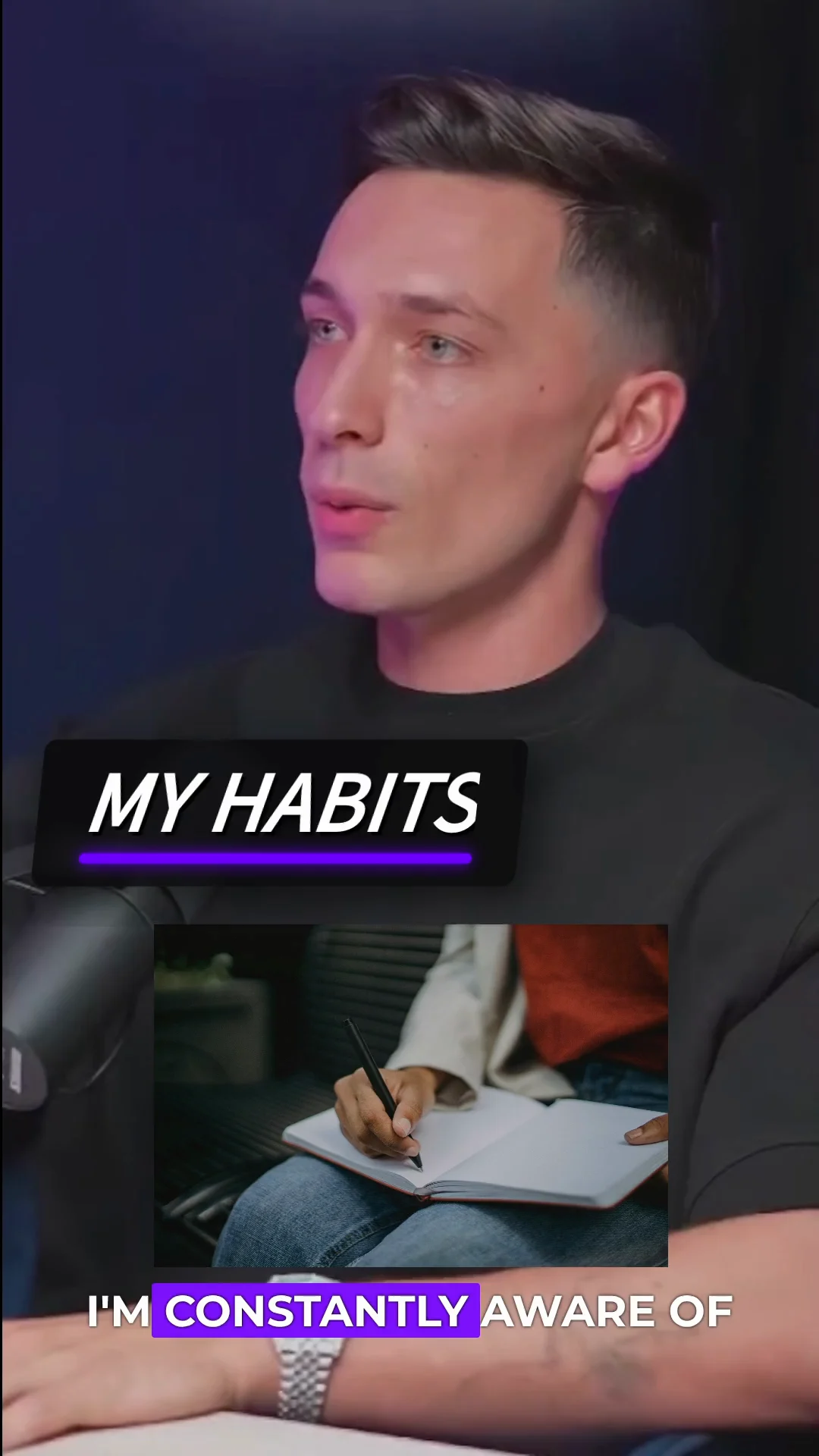
Break a walkthrough into short script sections and give each section a visual cue. Match one instruction to one action so viewers can follow the explanation.
-
Add a missing spoken line
Generate a short introduction or closing line, then place it beside the existing speech. Keep voice and music on separate tracks so you can adjust the new line without shifting the soundtrack.
-
Record a personal introduction
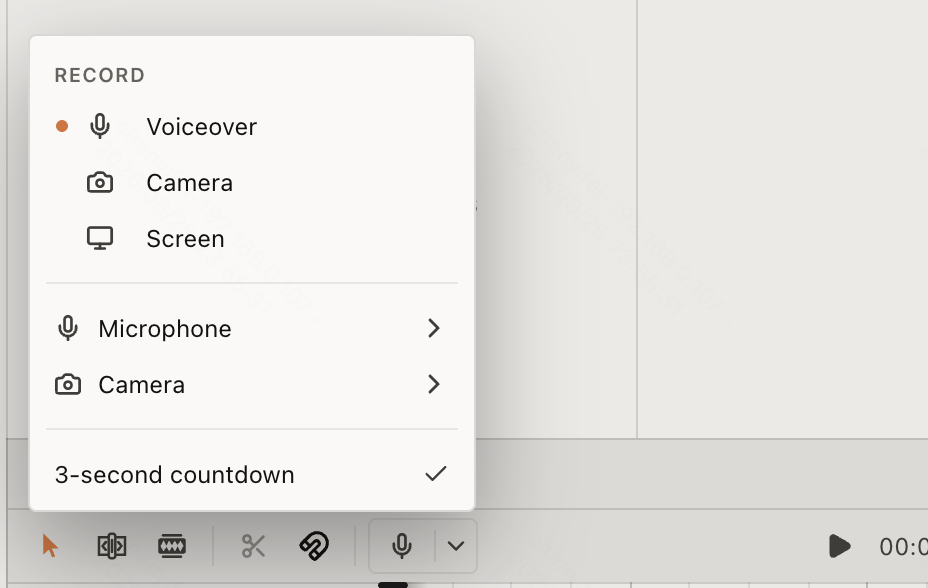
Choose Voiceover in the timeline recording menu and check the microphone before starting. Record the introduction in your own voice, then review its timing against the video.
Keep editing
Build the rest of the scene around the reading
Keep the spoken track beside your pictures while you refine timing. Add captions to the video, check the text against the final reading, and listen to the full mix before export. Manual timeline edits and export do not consume credits.
- Conversational editing
- Text-based editing
- Auto-captions
- Motion graphics
- AI voiceover
- Generate clips
- Noise removal
- Multi-track timeline
-
You Can Now Edit Videos with Grok Bot
Edit with Grok Bot -
How to Make 3× the Content With AI (No Editing Experience)
Turn long videos into shorts -
I Turned One Product Photo Into a Full Ad With ChatGPT
Product ads skill -
How to Create Insane Motion Graphics with Astra 6
AI motion graphics
Skills
Hundreds of skills for any video
100+ Skills. No experience needed. Start in one click.





FAQ
AI voice generator FAQ
Is the AI voice generator free?
Signing in and manually editing a project do not consume credits. AI narration and built-in Agent messages use credits; custom My Voices narration also requires a paid membership. Check the credits policy for the distinction between generation and editing.
Do I need a recording to generate narration?
No recording is needed when you select a supplied voice from the library. Attach that voice to your request and provide the script, language, delivery, and intended placement. A personal clone needs a separate authorized reference recording.
Which languages can I use?
Support depends on the selected voice. Use the language filter and preview a compatible voice with the same language as your script. Do not assume that every library voice supports every language or that the conversation language selects it for you.
Can I use my own voice for new scripts?
Yes, create an authorized clone and save it under My Voices. Select it for a new narration request rather than uploading the sample for every line. An active paid membership is required to generate with that saved voice, and generation uses credits.
Can I control the exact length of the reading?
Give a target duration and name the clip or time range it must match. Review the generated reading against the visuals; the request is not a promise of an exact duration. Shorten the wording or revise the pace when the first take feels rushed.
Can I download an MP3 of the narration?
Yes, place the narration on the active timeline and select Export → Audio. Web creates an MP3, while Desktop also offers AAC saved as M4A, FLAC, and WAV. Export the intended range and open the finished file to check the result.
Can I add background music after the voice?
Yes, keep music on its own audio track so you can adjust timing and level independently. Follow the music mixing workflow to set fades and ducking beneath speech. Listen to the combined result, not only the narration in isolation.
Can I record narration instead of generating it?
Yes, use the arrow beside the timeline recording control and choose Voiceover. Check the microphone and countdown before recording. The recording instructions explain where the saved take appears and how to recover an interrupted recording.
Related
More AI voice generator and audio tools
All AI apps
Audio & voice
- AI voice generator
- Audio editor
- Voice cloning
Captions, text & translation
AI video & images
All free tools
Convert & compress
Edit video
Audio & voice